In 2020 you migrated the file server to SharePoint. 1.8 million files, from the marketing share nobody misses to the HR share nobody dares to open: twelve years of employment contracts with citizen service numbers, payslips with IBANs, scanned copies of passports. Migration day was a success. Nobody has opened most of those files since.
This year you built the auto-labeling policy properly. Eight sensitive information types (SITs), including two custom ones: your employee numbers, and the phrasing of your own employment contract template. The simulation looked sane, you turned it on, and a week later the 100,000 files people actually work on are labeled.
The HR share? A handful of labels, where an old built-in SIT happened to match. Your two custom SITs matched nothing in it. Not because there's nothing there. Because the policy never looked.
The challenge
The ask sounded simple. Before Microsoft 365 Copilot goes live for everyone on 01-01-2027, every file with personal data gets the label Confidential - Personal data, so your DLP policy for Copilot can keep those files out of its answers. That includes the HR share.
Here's what actually stands between you and that date:
- The policy can't see the migrated files. They were classified on migration day, against the SITs of 2020. Your custom SITs didn't exist yet.
- Making them visible costs money per file, and the default re-scan skips everything older than a year. Which is all of it.
- You can't tune a SIT halfway. Edit one after the re-scan, and those files drop out of view again.
- A re-scan wakes up every policy you have. DLP, retention and insider risk all see 1.8 million freshly classified files.
- Even a match isn't a label. The .doc files from 2009, the library that requires check-out, the contract someone labeled Internal by hand: they stay exactly as they are.
None of it shows up as an error. The policy is On, the dashboard is green, and the HR share is as unlabeled as it was on migration day. The rest of this post takes those five apart, in the order you'll hit them.
How Purview auto-labeling finds a SharePoint file
The mental model most people have is wrong. An auto-labeling policy doesn't walk through your sites and read every file in scope. It acts on classification: the record of which SITs a file contains. And SharePoint classifies a file when it's created or changed, which is when the search index picks it up.
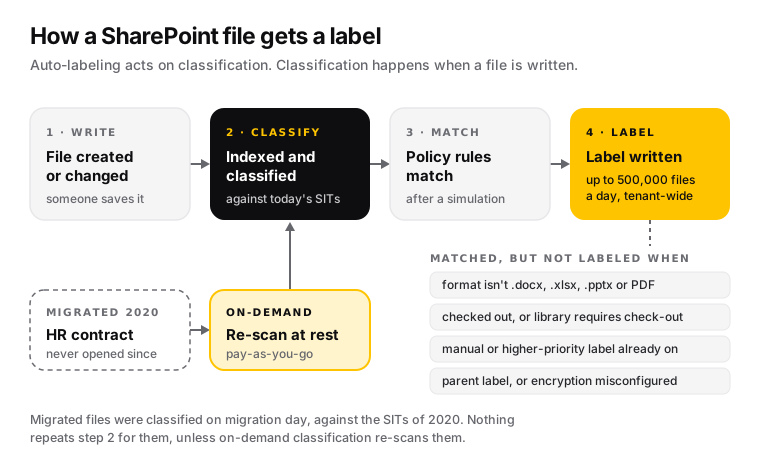
For a file people work on, that's invisible. Somebody saves it, it gets indexed and classified against your current SITs, the policy matches, and the label lands. Your 100,000 active files follow that path, and at a tenant-wide budget of up to 500,000 labeled files a day they're done fast.
For a contract that was migrated in 2020 and never opened again, step 2 happened on migration day. Against the SITs you had in 2020.
The SIT clock: why migrated files never match
This is the line in Microsoft's auto-labeling documentation that explains your HR share:
Auto-labeling only evaluates content that was created or modified after the SIT was created or last modified.
That restriction applies to all custom SITs and any new built-in SITs. So your policy behaves like a set of clocks, one per SIT. A built-in SIT that already existed in 2020 can still match a migrated file, which is where your handful of labels came from. Your custom employee-number SIT, created this year, matches nothing older than itself.
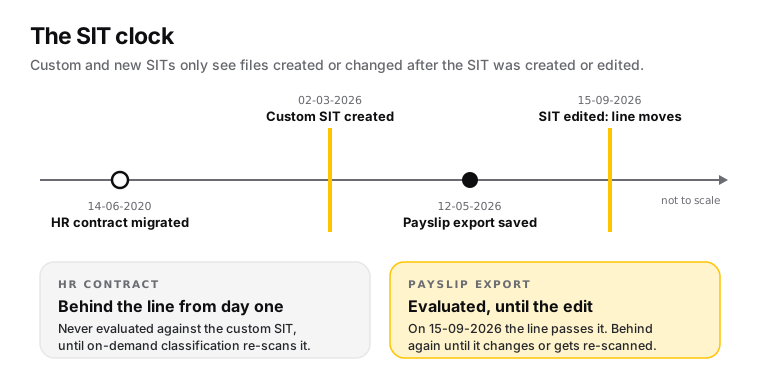
The nasty part is the second half of that sentence: created or last modified. Tweak the regex in your custom SIT to cut a few false positives, and the line moves. Files that were evaluated against the old version, but haven't changed since, are behind the line again. Finish tuning your custom SITs before you go after old content, then leave them alone.
On-demand classification: the fix, with a meter running
Microsoft's answer for files at rest is on-demand classification. You find it in the Purview portal under Information Protection > Classifiers > On-demand classification. It re-scans files at rest in SharePoint and OneDrive against your current SITs and classifiers, in two phases:
- Estimation. You define scope (all sites, specific sites or an adaptive scope), classifiers, a last-modified date range and file extensions. The estimate shows the item count and the expected cost.
- Classification. Select Start classification. You can start up to 30 days after estimation, but the longer you wait, the less accurate the estimate.
It needs the Compliance Administrator role, and it's pay-as-you-go: billed per 10,000 files classified, on an Azure subscription. Empty files are skipped and not billed. Four things in the docs decide whether your scan is worth the money:
- The default date range is the past year. Out of the box, a scan covers files created or modified within the last twelve months. Your migrated file server is, by definition, older than that. Widen the range, or you'll pay to classify exactly the files that didn't need it.
- Pick classifiers carefully. You can select up to 50 specific classifiers, and then only those get updated on the scanned files. Cost depends on the number of files, not the number of classifiers. So include every SIT your labeling policies use in one scan, rather than running a second scan later for the one you forgot.
- Exact data match (EDM) rescans. If you use EDM classifiers, scans re-process previously classified files, which drives up the cost. Exclude EDM from the scope if you don't need it.
- Scale. One scan handles up to 150,000 locations and 100 million files. If a location is in two active scans, only one processes it.
And one thing that isn't about labels at all. Every file the scan classifies is evaluated against your DLP, information protection, data lifecycle management and insider risk management policies. 1.8 million freshly classified files will also hit your auto-apply retention labels, your DLP rules and their alerts. Check those policies before you press Start, not after the alert queue fills up.
What can't get a label
Classification makes a file visible to your policy. It doesn't guarantee a label. Between "this file contains a passport number" and "this file is labeled" sits a funnel, and a migrated file server is exactly the content that gets stuck in it.
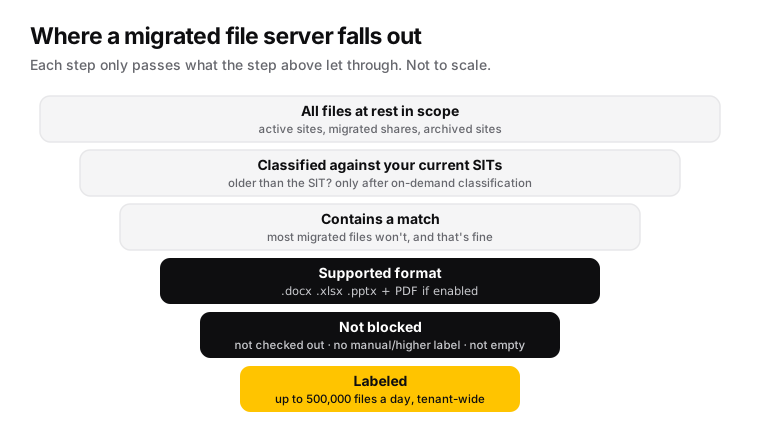
- File formats. Auto-labeling in SharePoint and OneDrive labels Word (.docx), Excel (.xlsx) and PowerPoint (.pptx) files, plus PDFs once you've turned on PDF support. The pre-2007 formats (.doc, .xls, .ppt) that fill every old department share aren't on that list. Without PDF support, PDFs are skipped entirely: not evaluated, not labeled. For an HR share full of scanned contracts, that one matters.
- Checked-out files, and whole libraries. A file that's checked out counts as open, so it can't be labeled. The same goes for every file in a library that requires check-out, a setting old document-management sites love.
- Existing labels. Auto-labeling doesn't replace a manually applied label unless you configure the policy to replace a lower-priority one. A higher-priority label is never replaced.
- The odd ones. Attachments on list items and OneDrive accounts that are no longer associated with their user (a detached OneDrive) aren't supported, and empty files may not be labeled.
- The label itself. A label with sublabels (a parent label) can't be applied, so a policy that uses one labels nothing. And for SharePoint and OneDrive, an encrypting label must use "Assign permissions now" with content that never expires. Otherwise the file matches the rule, but the label can't be written.
Two side effects are actually good news for old content. Auto-labeling doesn't change a file's Modified and Modified by values, so retention that counts from the last modification isn't reset by labeling. And auto-labeling doesn't apply a label's headers, footers or watermarks to documents, so nobody's twelve-year-old contracts suddenly get "CONFIDENTIAL" stamped across them.
One to think about if your label encrypts. For SharePoint and OneDrive, the Rights Management issuer and owner of an auto-encrypted file is the account that last modified it. On a migrated share, that can be the migration account, or someone who left years ago. Make sure your Rights Management super user setup is in order before encryption lands on the HR share.
Microsoft 365 Archive: actual cold storage
If part of that file server already moved on to Microsoft 365 Archive, the rules shift a little. Archived content isn't directly accessible to anyone, Microsoft 365 Copilot doesn't use it, and Purview Content Search, eDiscovery and end-user search still find it. On labels, Microsoft says archived content still honors sensitivity label settings, and that new sensitivity labels also get applied to files in archived sites.
What the documentation doesn't spell out is whether on-demand classification reaches into archived sites. Test it on one small archived site before you build a plan on it. And if you consider reactivating sites to label them: reactivation in SharePoint has been free since 31-03-2025, but reactivated content can't be archived again for four months. For those four months it counts as active storage again, and you pay extra once your SharePoint storage quota runs out.
It's also fair to ask whether archived content needs a label now. Nobody can open it and Copilot doesn't use it. The risk returns when it's reactivated or exported, so a label at that point may be the more honest answer than a tenant-wide scan.
The order of operations
Get the order wrong and you pay twice. This is the sequence that works:
- Freeze your SITs. Finish tuning custom SITs first. Every edit after classification moves the line again.
- Check the tenant switches (the check below): labels enabled for SharePoint and OneDrive, PDF support, and auditing, which simulation needs.
- Build and simulate the policy on a pilot site. Simulation stops at 20,000,000 matched files per policy, and the policy can't be turned on above that, so split very large estates by site scope.
- Estimate on-demand classification for the migrated sites: widen the date range, include every SIT your policies use, read the file count and cost.
- Check the side effects: DLP, auto-apply retention labels and insider risk policies will all see the newly classified files.
- Classify, then turn on. Labeling runs at up to 500,000 files a day across all policies. Remember you're not labeling 1.8 million files, only the ones that contain a match.
- Be patient with the reporting. Labeling progress refreshes about every 48 hours, and content explorer can take up to 14 days to reflect SharePoint files.
Check it yourself: what auto-labeling silently depends on
Missing any of these usually makes a policy run without labeling anything, and the portal won't tell you. Every line below only reads. None of it changes anything.
# SharePoint Online Management Shell: both should be True
Connect-SPOService -Url https://contoso-admin.sharepoint.com
Get-SPOTenant | Select-Object EnableAIPIntegration, EnableSensitivityLabelforPDF

# Exchange Online PowerShell, not Security & Compliance: there it always says False
Connect-ExchangeOnline
Get-AdminAuditLogConfig | Select-Object UnifiedAuditLogIngestionEnabled

# Security & Compliance PowerShell: 'Enable' labels, 'TestWithoutNotifications' only simulates
Connect-IPPSSession
Get-AutoSensitivityLabelPolicy | Select-Object Name, Mode
Anything that comes back False is a reason your policy labels less than you think. Turning it on is a tenant-wide decision: enabling labels for SharePoint and OneDrive changes how encrypted files behave in search, eDiscovery and co-authoring. Make that call deliberately, not from a blog post. And mind the auditing gotcha in the comment: Security & Compliance PowerShell has the same cmdlet, and there it always reports False, even when auditing is on.
No Exchange Online?
Plenty of tenants run SharePoint in Microsoft 365 with mail somewhere else: Exchange on-premises, or another provider entirely. Zero mailboxes isn't zero Exchange Online, though. The audit switch and its Audit Logs role live in the Exchange Online organization of your tenant, whether you host mail there or not. For SharePoint and OneDrive labeling, mailboxes don't matter: none of the auto-labeling prerequisites mention them. But three things in this post quietly lean on Exchange Online:
- Auditing. Simulation needs the unified audit log, and turning it on requires the Audit Logs role in Exchange Online. If Exchange Online PowerShell isn't an option, check the Audit page in the Purview portal: when auditing is off, it shows a banner to start recording user and admin activity. Also worth knowing: auditing isn't on by default for Microsoft 365 Business Basic, Business Standard and Business Premium.
- Publishing the label to groups. Auto-labeling needs the label published to at least one user. Label policies accept individual users, or mail-enabled groups: email-enabled security groups, distribution groups and Microsoft 365 groups. A plain security group isn't on that list, so without Exchange Online you'll typically publish to users, or to everyone.
- Email. Not the topic of this post, but don't promise it: sensitivity labels in Outlook only work for mailboxes hosted in Exchange Online. On-premises mailboxes aren't supported, and that includes shared mailboxes.
One more, if mail stays out of Exchange Online because the Exchange Online plan is switched off in the licence: that switch costs more than mail. Teams keeps its compliance copy of chats in Exchange Online, so those users' chats fall outside eDiscovery, holds and retention. I wrote that one up separately: Teams chats without an Exchange Online licence, including a read-only script that lists who it already applies to.
Auto-labeling at scale isn't one switch. It's a pipeline, and migrated content fails at the first step without telling anyone. Classify what's at rest, freeze what you classify against, and then let the policy do what everyone assumed it was already doing.
Sources: Automatically apply a sensitivity label to Microsoft 365 data, On-demand classification, Purview billing models, Enable sensitivity labels for files in SharePoint and OneDrive, DLP for Microsoft 365 Copilot, Compliance features in Microsoft 365 Archive, Microsoft 365 Archive pricing, Turn auditing on or off, Create and publish sensitivity labels, Manage sensitivity labels in Office apps.